Troubleshooting
This page covers common issues you may encounter when setting up or operating a server phone, along with their solutions.
Installation Issues
APK Refuses to Install (Play Protect)
Symptoms: The phone blocks the APK installation or shows a warning that prevents you from installing TeleTalk.
Solution:
Temporarily disable Google Play Protect, then try installing again.
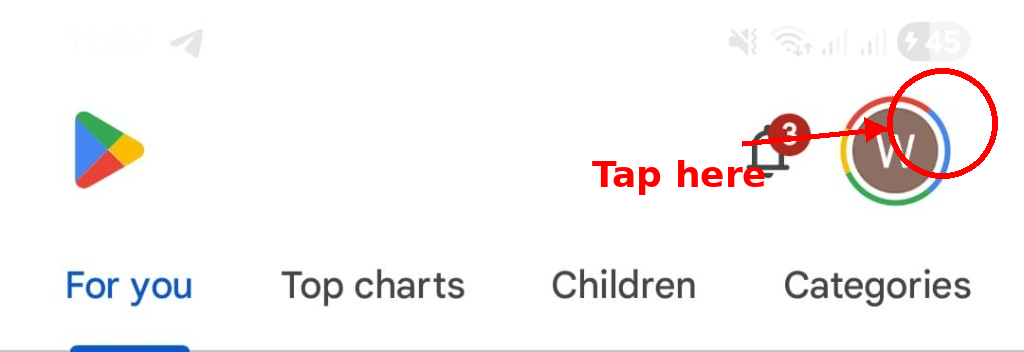
1. Open the Google Play Store and tap your profile icon in the top right corner.
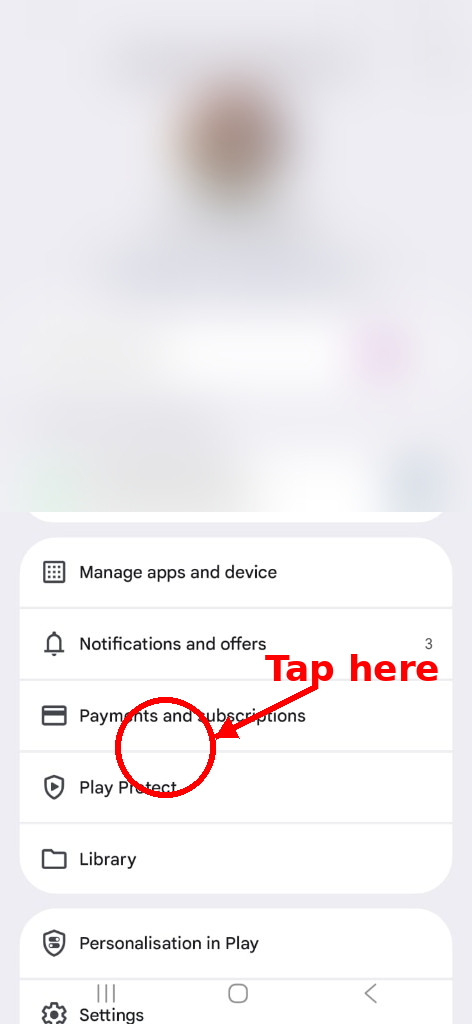
2. In the menu, tap Play Protect.
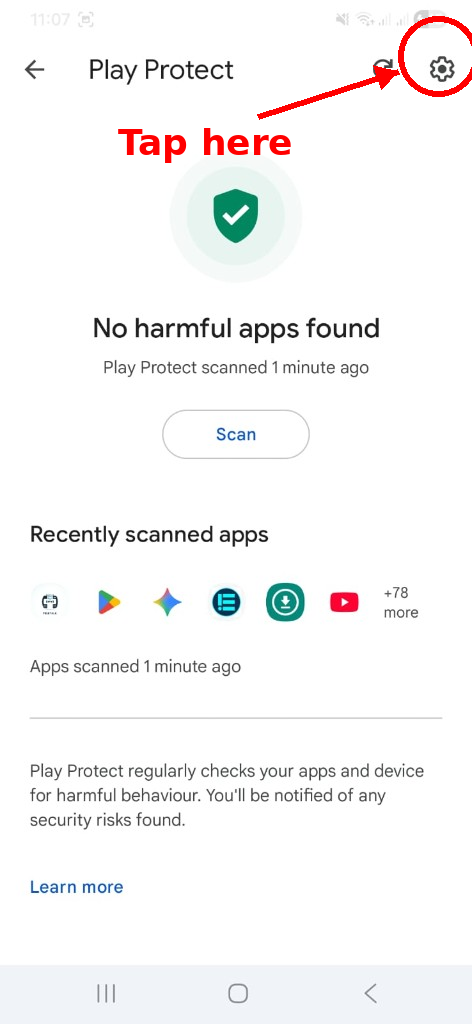
3. On the Play Protect screen, tap the settings icon (gear) in the top right corner.
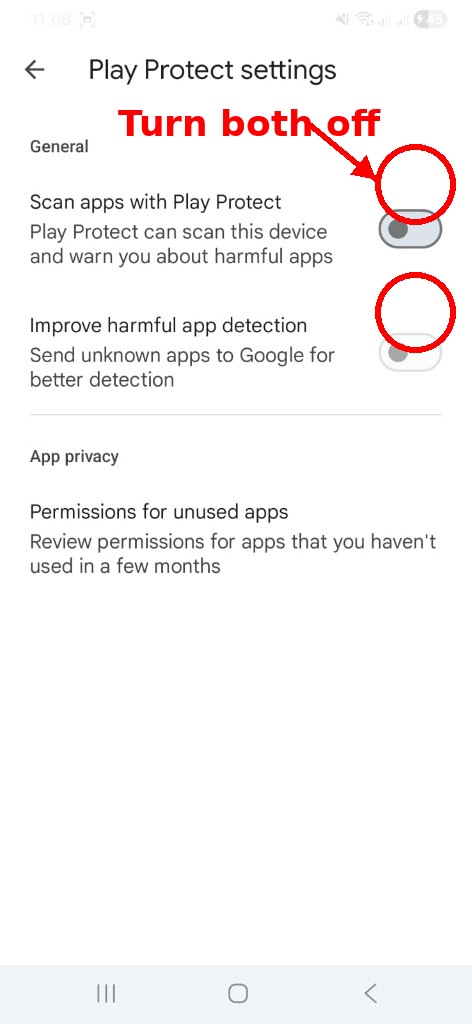
4. Turn off both "Scan apps with Play Protect" and "Improve harmful app detection".
5. Go back and try installing the APK again — it should now install without being blocked.
Tip
You can re-enable Play Protect after TeleTalk is successfully installed.
TeleTalk Issues
TeleTalk Stops Running in the Background
Symptoms: The app is no longer running or syncing data. Opening the app shows it has restarted.
Solution:
- Disable battery optimization for TeleTalk — see Phone Configuration.
- Enable auto-start if your device manufacturer requires it — see Phone Configuration.
- On Xiaomi/MIUI devices, also check Settings > Battery > App battery saver and set TeleTalk to No restrictions.
- Lock TeleTalk in the recent apps tray (swipe down on the app card or tap the lock icon).
TeleTalk Crashes or Freezes
Symptoms: The app becomes unresponsive or closes unexpectedly.
Solution:
- Force stop TeleTalk: Settings > Apps > TeleTalk > Force Stop.
- Clear the app cache: Settings > Apps > TeleTalk > Storage > Clear Cache.
- Reopen TeleTalk and log in again.
- If the issue persists, reinstall the latest APK — see Getting Started.
Warning
Do not tap Clear Data unless instructed by your administrator. This will erase all local settings and cached information.
Network Issues
Data Not Syncing
Symptoms: The sync status indicator shows an error or the last sync timestamp is stale.
Solution:
- Open a browser on the phone and try loading a website to confirm internet access.
- If Wi-Fi is connected but has no internet, try disconnecting and reconnecting.
- If using mobile data, check that the data plan is active and has remaining balance.
- Restart the phone's Wi-Fi or mobile data from quick settings.
- Check the login session — log out of TeleTalk and log back in.
Wi-Fi Keeps Disconnecting
Symptoms: The phone repeatedly drops the Wi-Fi connection.
Solution:
- Forget the Wi-Fi network and reconnect with the correct password.
- Move the phone closer to the Wi-Fi router if signal strength is weak.
- Disable Wi-Fi power saving if available: Settings > Wi-Fi > Advanced > Keep Wi-Fi on during sleep > Always.
- If the router uses a captive portal, ensure the login has not expired.
Power Issues
Phone Overheating
Symptoms: The phone feels hot to the touch or displays a temperature warning.
Solution:
- Move the phone to a cooler, well-ventilated location.
- Reduce screen brightness or turn off the screen (this does not affect background operation).
- Remove any phone case that may be trapping heat.
- Ensure the phone is not in direct sunlight.
Phone Turns Off Unexpectedly
Symptoms: The phone shuts down without warning.
Solution:
- Check the power cable and adapter — replace if damaged or frayed.
- Try a different power outlet.
- Ensure the adapter provides at least 2A output.
- If the phone battery is degraded, consider replacing the phone.
- Connect through a UPS or power bank to protect against brief power outages.
Quick Reference
| Issue | First Thing to Check |
|---|---|
| APK refuses to install | Disable Play Protect |
| App stops in background | Battery optimization settings |
| Data not syncing | Internet connectivity |
| Wi-Fi disconnects | Signal strength and power saving settings |
| Phone overheating | Ventilation and direct sunlight |
| Phone shuts down | Power cable and adapter |
Still Need Help?
If the issue is not resolved by the steps above, contact your system administrator with the following information:
- Phone model and Android version
- TeleTalk version (found in the app settings)
- Description of the issue and when it started
- Steps already tried from this troubleshooting guide