Getting Started
This page walks you through downloading, installing, and setting up TeleTalk on your server phone.
TeleTalk is distributed as an APK file, not via the public app store. You will need to allow installation from "Unknown sources" on the phone.
Step 1 — Download the APK
You can get the APK in one of two ways:
Open a browser on the server phone and go to:
https://apps.omnivoltaic.com/prod/oves.apk
The download should start automatically.
Your administrator may send you the APK file directly (e.g. via WhatsApp, email, or file transfer). Simply tap on the file to download it.

Info
If neither option works, contact your administrator to obtain the APK file.
Once you have the APK, move on to Step 2.
Step 2 — Install TeleTalk
-
Tap the downloaded APK file from the notification bar, or find it in the Downloads / Files app.
-
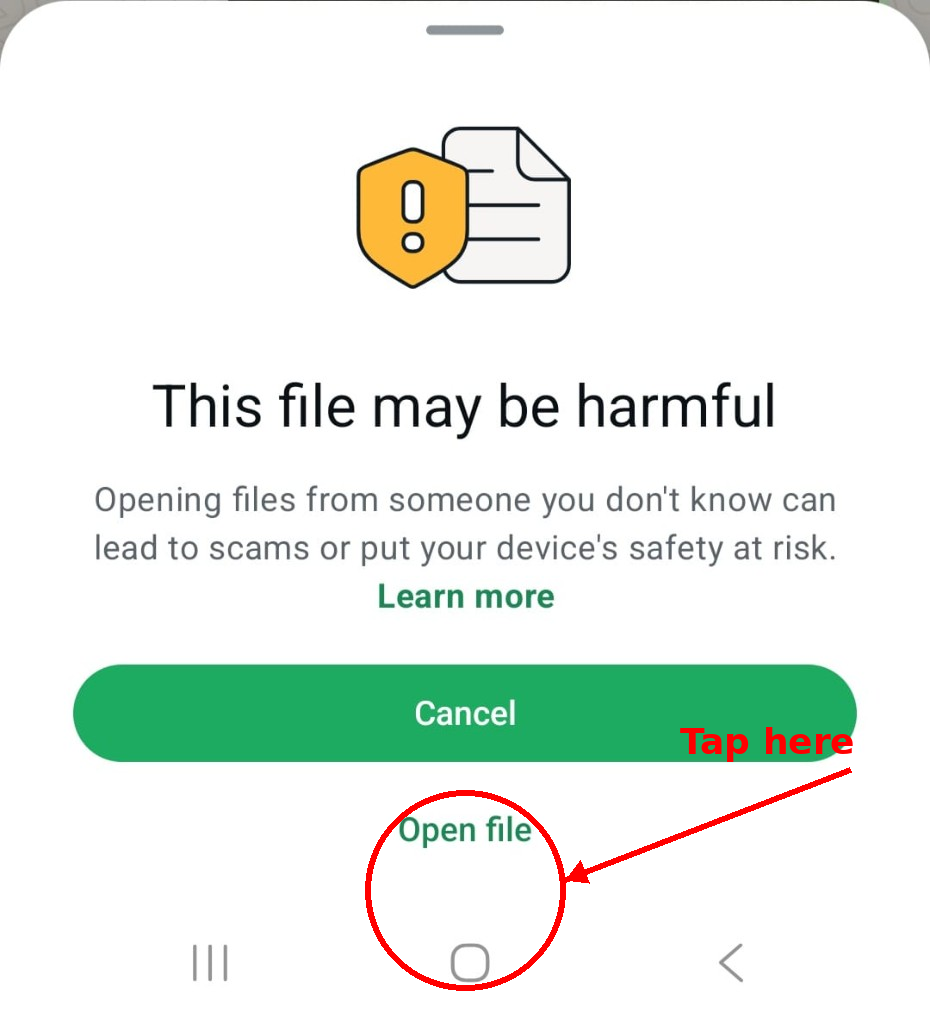
You may see a "This file may be harmful" warning. Tap Open file to proceed.
-
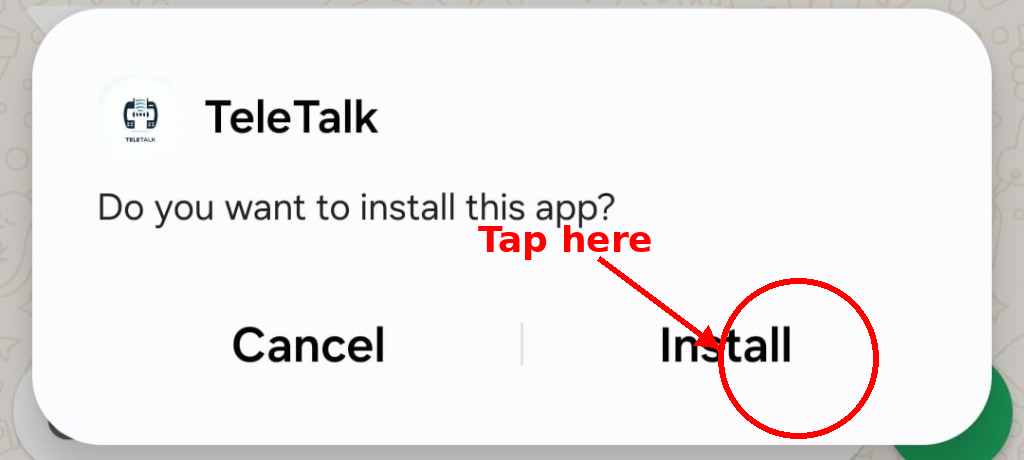
When asked "Do you want to install this app?", tap Install.
-
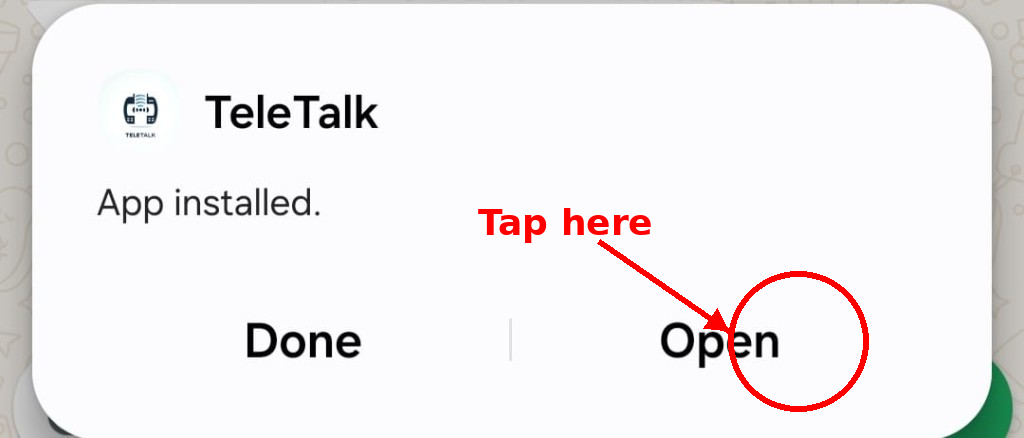
Once the installation is complete, tap Open to launch TeleTalk.
-
TeleTalk will ask for permissions. Grant both when prompted:
Permission Why It's Needed Messages (SMS) Allows TeleTalk to send and receive SMS Calls (Phone) Allows TeleTalk to manage calls Warning
Both permissions must be granted. If either is denied, TeleTalk will not work. You can fix this later from Settings > Apps > TeleTalk > Permissions.
Note
Having trouble installing? See the Troubleshooting page for help.
Once installed, move on to Step 3.
Step 3 — Log In
You will see the TeleTalk login screen. Enter the email and password provided by your administrator, then tap LOG IN.
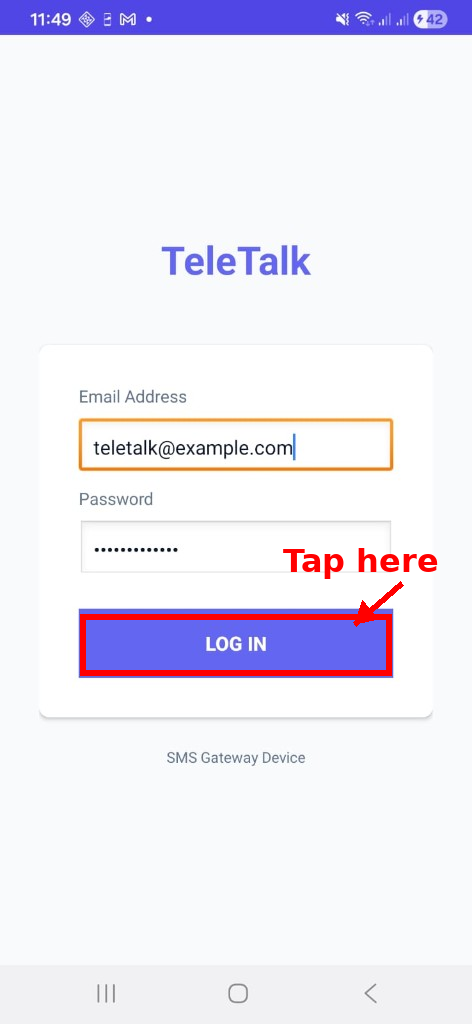
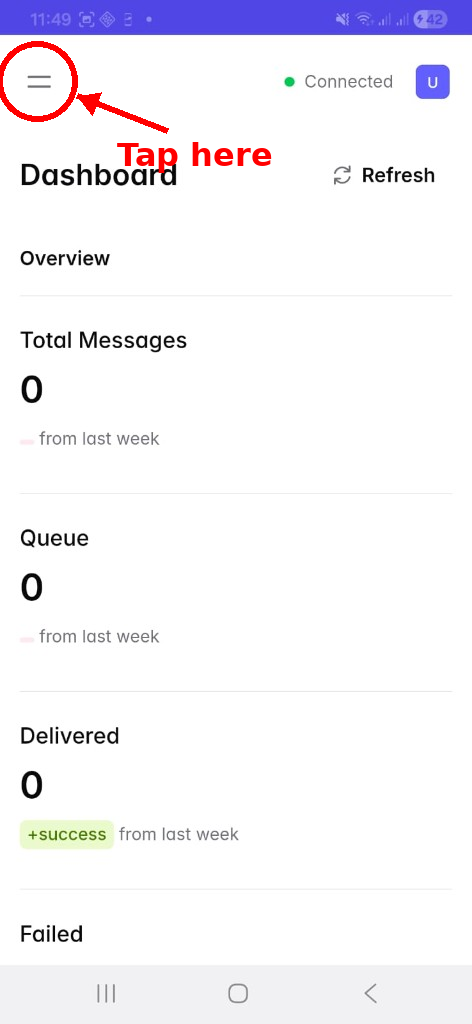
After logging in you will land on the Dashboard. This shows the status of your messages and confirms you are connected.
Now move on to Step 4.
Step 4 — Register the Device
The final step is to register this phone with your organization so it can start sending and receiving messages.
1. Tap the menu icon (☰) in the top left corner of the Dashboard.
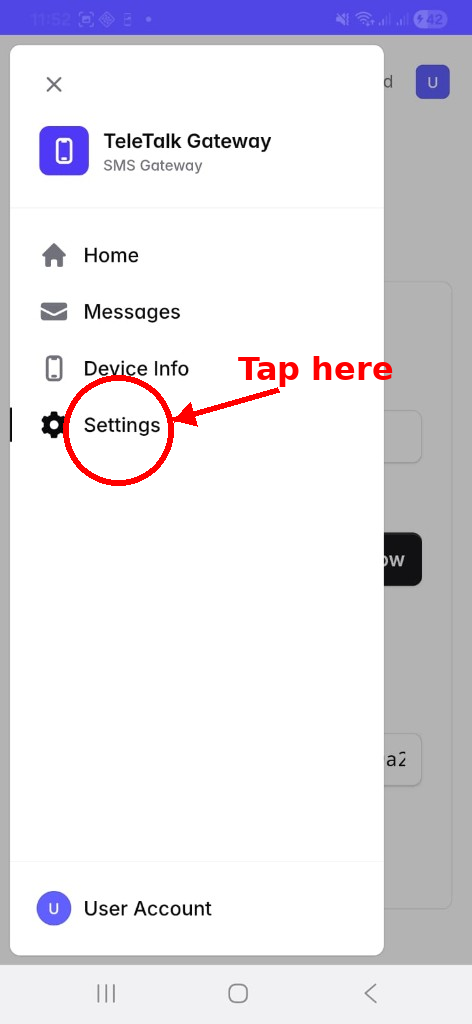
2. In the sidebar, tap Settings.
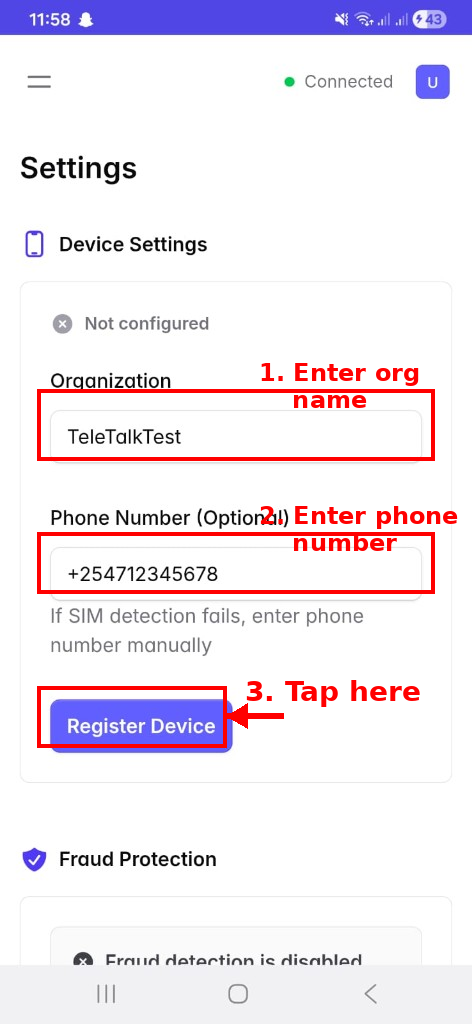
3. Fill in the details on the Settings page:
- Organization — enter your organization name (provided by your admin).
- Phone Number — enter the phone number of the SIM card in this phone.
Then tap Register Device.
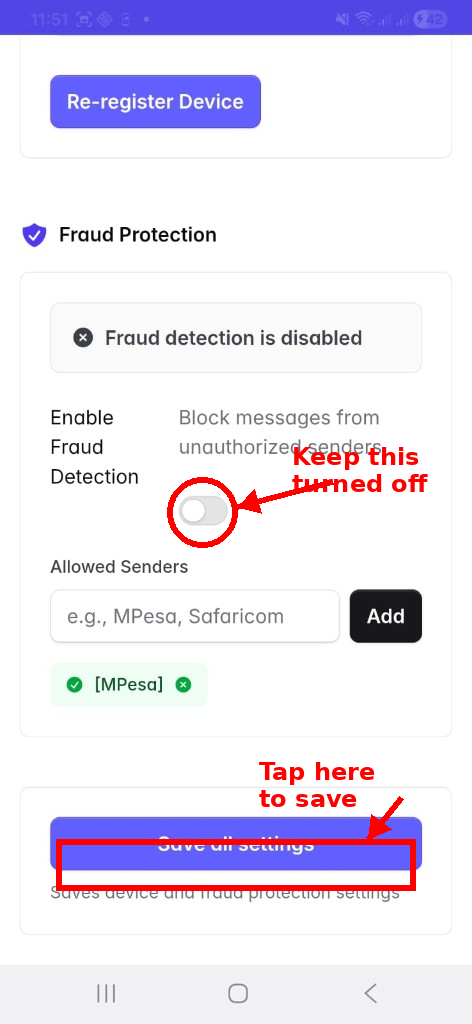
4. Scroll down to Fraud Protection. Make sure the Enable Fraud Detection toggle is off, then tap Save all settings.
Tip
Disabling fraud detection prevents the app from incorrectly blocking outgoing messages.
You're all done! TeleTalk is now set up and ready to use on this phone.